
A single nightly rate has to do two jobs at once, and it will usually do one of them badly. Set it for the Christmas fortnight and it will sit there looking expensive through a wet Tuesday in June. Set it for June and you are handing away your best two weeks of the year at the same price as your quietest.
Camper BMS gives every area three nightly rates instead of one, and two ways to decide which rate a given night gets.
A note on terms: everything below is about what you charge your guests. It has nothing to do with what Camper BMS charges you, which is set out on the pricing page.
The three rates
Each campsite area carries its own pricing, set under Edit Pricing & Rates:
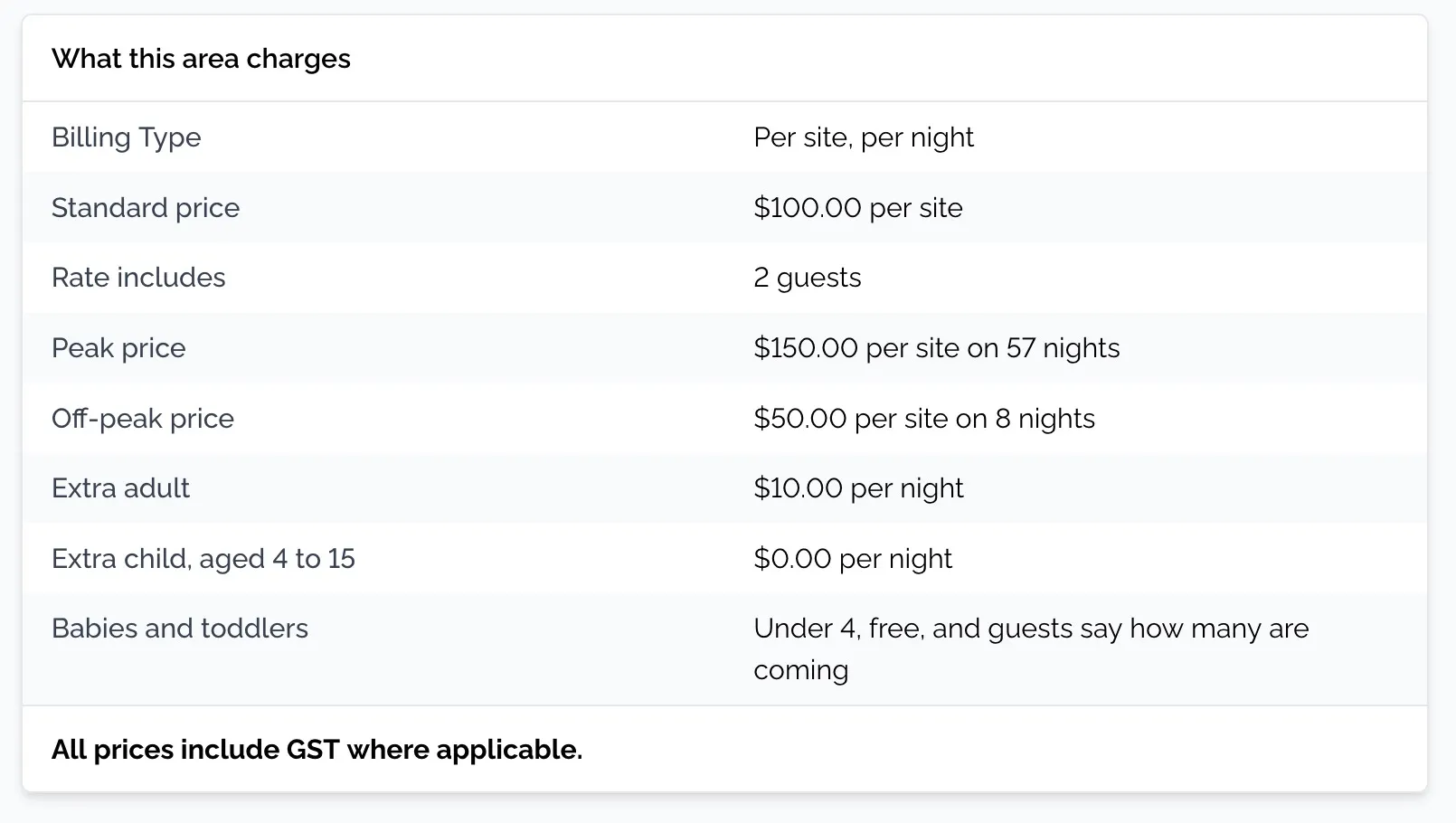
- Standard price. Your default nightly rate. Any date not covered by the other two uses this.
- Higher price. Your peak rate, for the periods you can genuinely charge more for.
- Lower price. Your off-peak rate, for the periods where filling the site matters more than the rate on it.
Every night of every booking is priced from one of those three, or from a point in between them. Because they are set per area, your cabins, powered sites and unpowered sites each get their own three rates instead of sharing one seasonal curve.
Two structural choices sit alongside them. Per site charges a flat rate per night whatever the party size. Per person charges its rate per guest per night. If you price per site, you can also add an additional person charge for each guest above the area's minimum, and choose how it is taken: once per booking, or per night. With a minimum of 2 and a $10 charge, a third guest staying four nights adds $10 on the once-per-booking setting, or $40 on the per-night one.
Way one: pick the dates yourself
In manual mode you set the three prices and then choose, with a date picker, exactly which dates get the higher rate and which get the lower one. Everything you do not select stays on the standard rate.
This is the direct approach, and it suits a park whose calendar is known well in advance. School holidays, Easter, the Christmas fortnight, the long weekends, and the local show or festival weekend go on the higher list. The deep mid-week stretches of winter go on the lower list. Nothing is inferred, and nothing shifts unless you shift it.
It is also the easier starting point if you are new. Manual pricing does not need any booking history to produce a sensible calendar, because you are supplying the judgement yourself.
Way two: let your booking history pick the dates
Switch the area from Manual Pricing to Dynamic Pricing and the higher and lower date pickers disappear. Instead of choosing dates, you keep the same three prices and Camper BMS works out where each day should land between them.
How the multiplier works
Every day in the forward calendar gets a multiplier between 0 and 2, and that number is a position on the scale you have already defined:
- 0.0 is your lower price.
- 1.0 is your standard price.
- 2.0 is your higher price.
- Anything in between is interpolated, so 0.5 prices halfway between lower and standard, and 1.5 prices halfway between standard and higher.
This is why the three prices still matter under dynamic pricing. They are the rails it runs on. Dynamic pricing decides where on the rails a night sits, but it can never price above your higher rate or below your lower one, so you always know the range you have exposed.
Where the numbers come from
Camper BMS looks at up to two years of confirmed bookings for that area, and works out how heavily each calendar day was booked against how many sites were available. A day that historically ran close to full pushes towards your higher rate. A day that historically sat empty pushes towards your lower one.
On top of that, three loadings are applied for the days that carry a premium regardless of what last year did:
- Weekends (Friday, Saturday, Sunday) carry a 30% loading.
- Thursdays carry 15%, which catches guests arriving early for a long weekend.
- Public holidays carry 50%, worked out for your campground's own state and timezone, and recalculated per year so moveable dates like Easter land correctly.
Those loadings also act as a floor. Even where the history shows nothing at all, a public holiday will not price below its holiday premium and a Saturday will not price below its weekend premium. A park's first Saturday on the system still prices like a Saturday.
What you see
Turning dynamic pricing on produces a pricing calendar: every day's calculated nightly price, colour-coded by tier, with month-by-month navigation and the exact figure on hover. It is the whole forward two years laid out, so you can see what a guest booking next Easter will be quoted before anyone books it.
The analysis re-runs every four hours, so this season's bookings feed into next season's prices without you regenerating anything or pressing a button to refresh the calendar.
Overriding a single day
Automatic pricing does not know about the speedway meet, the music festival two towns over, or the wedding that has taken half your cabins. So any individual day can be overridden by hand.
Click the day on the calendar, move a slider from low to high, and watch the price update as you go. You can attach a note recording why, which is worth doing for anything you will not remember in eleven months. Overridden days are marked with a pencil icon and a highlighted ring, and they are left alone when the automatic analysis re-runs. An override stays until you clear it, at which point the day returns to its calculated price.
Pricing one site differently to its neighbours
Areas do most of the work, but a single campsite can carry its own standard, higher and lower rates. That is the tool for the site with the view, the extra space, or the good afternoon shade.
One consequence is worth knowing before you use it: sites with individual pricing are excluded from auto-allocation. When a guest presses Book Now without choosing a site, only standard-priced sites are considered. Your premium site is only booked when someone picks it deliberately from the site list. That is usually what you want for a genuinely premium site, but if you put individual pricing on most of your inventory you will find auto-allocation has very little left to work with.
On the booking page, the site list shows the real total for the dates selected instead of a nightly rate, so a guest comparing a standard site against a premium one is comparing two totals for the same dates.
Choosing between manual and dynamic
Broadly:
- Manual suits you if your seasons are driven by the calendar rather than by demand you have measured, if you are new and have no booking history for the system to read, or if you want to know exactly what every date is priced at because you typed it.
- Dynamic suits you if you have at least a season or two of bookings in the system, you have more areas than you want to hand-tune, and your demand pattern is more detailed than "school holidays are busy".
Starting manual and moving to dynamic later costs nothing. The three prices carry across unchanged, and switching back preserves your multiplier data in case you want to return to it.
One caution if you are just getting started: dynamic pricing with no booking history behind it will read your empty past as low demand and price most ordinary days at or near your lower rate. The weekend and holiday floors stop that being a disaster, but it is not the calendar you want. Give it a season of real bookings first. The area also needs at least one live site before a calendar is generated, since the analysis measures occupancy against the sites you actually have.
What this pairs with
Seasonal rates work alongside the other levers on the same dates. Booking limits can hold a longer minimum stay over the same peak period your higher rate covers, so you are not selling a single Saturday night at a premium and losing the changeover. And for the dates where demand outruns supply entirely, ballots allocate by fair draw instead of by price alone.
Common questions
How many nightly rates can I set for an area?
Three: standard, higher and lower. Every night is priced from one of them, or from a point in between when dynamic pricing is on.
What is dynamic pricing based on?
Your own booking history for that area, going back up to two years, turned into a daily multiplier that slides between your three rates. Thursdays, weekends and public holidays carry an additional loading.
Does dynamic pricing work if I am brand new and have no booking history?
It runs, but with nothing to read it will price ordinary days at or near your lower rate. Weekends, Thursdays and public holidays still carry a minimum loading. Manual pricing gives you a more sensible calendar until you have a season behind you.
Can I change the price on a single day when dynamic pricing is on?
Yes. Click the day on the pricing calendar and set it with a slider, optionally with a note. Overridden days are marked with a pencil icon, survive the automatic re-analysis, and can be cleared back to the calculated price whenever you like.
Can one campsite be priced differently to the rest of its area?
Yes, with its own standard, higher and lower rates. Sites with individual pricing are excluded from auto-allocation, so they are booked only when a guest picks that site specifically.
Do guests see the nightly rate or the total?
The site selection list shows the actual total for the dates chosen, so guests compare what each site costs for their stay rather than a nightly rate they have to multiply out.
Price your seasons separately
Set a standard, higher and lower rate for each area, then apply them over the dates you choose or let your booking history do it.